
 Star on GitHub
Shipping a Flutter app in 2026
Your Flutter app is complete, and now you want to make it available to people in the App Store, Google Play, or both. If you haven’t published an app before, it’s hard to know what needs to be done and in what order. The instructions exist, but they’re spread across Flutter’s guides, two store consoles, and the documentation for any tools you use.
This guide connects them. It explains what publishing involves, what help you can get with the work, and how each stage leads to the next, with links to the official instructions for the details.
If you haven’t built your app yet, the Serverpod Quickstart can help you create a Flutter app with a Serverpod backend and deploy it to Serverpod Cloud. Come back here when it’s ready to publish.
What publishing an app involves
Publishing an app involves six main steps:
- Create store account and app records: Each store needs a developer account, and each app needs a record that holds its store page, builds, and releases.
- Build and sign your app: Each store needs your app built for release and signed to show that it came from you.
- Create your store page and privacy answers: The store page is what people see before they install. Each store also asks about your app’s content and how it handles data.
- Test on real devices: Each store’s testing program gets your build to testers.
- Choose availability and submit for review: You decide where and how the app is offered, then send it to the store for review.
- Release your app: Once approved, your app goes live automatically or when you release it.
You can work on some of these at the same time. For example, you can prepare your store page while your app is being built.
Ways to handle the publishing steps
You can do the publishing work manually, or use tools to automate much of it. The stores’ requirements and reviews stay the same either way. There are three common approaches, and which one fits depends on what you’re prepared to maintain:
- Publishing manually: follow Flutter’s iOS and Android release guides and complete each step in App Store Connect and the Play Console. For every new version, you build, upload, and submit again, and building for iOS requires a Mac. This suits you if you release rarely.
- Running your own automation: tools such as fastlane automate release steps like building, uploading, and submitting. You can run them on your own machine or in a continuous integration and delivery (CI/CD) service such as GitHub Actions. You maintain the workflow and the store access it uses. This suits you if you want full control over your release workflow or already use a CI/CD service.
- Using a hosted service: Codemagic, Bitrise, and Appcircle provide the build machines and run the release workflow for you. You configure the service and give it access to your store accounts. This suits you if you don’t want to maintain that setup yourself, or don’t have a Mac for iOS builds.
Whichever tool you use to automate, you upload your app’s first version to Google Play manually.
Here’s how these tools can help with each of the six steps:
| Step | fastlane | Codemagic | Bitrise | Appcircle |
|---|---|---|---|---|
| 1. Set up store accounts and app records | ✓ App Store app record only | No | No | No |
| 2. Build and sign your app | ✓ | ✓ | ✓ | ✓ |
| 3. Create your store page and privacy answers | ✓ | No | ✓ App Store only | ✓ Enterprise |
| 4. Test on real devices | ✓ | ✓ | ✓ | ✓ |
| 5. Choose availability and submit for review | ✓ | ✓ | ✓ | ✓ |
| 6. Release your app | ✓ | ✓ | ✓ Google Play only | ✓ |
“No” means the service’s documentation doesn’t show a built-in way to do it. Codemagic, Bitrise, and Appcircle can also run fastlane in their workflows.
An agent can help with any of these steps, from uploading a build to updating your app’s store description.
The publishing steps
Each step below gives an overview of what to do, with links to the official instructions.
1. Create your store accounts and app records
Start by setting up a developer account for each store you’re targeting and creating your app’s entry there, called an app record.
App Store: enroll in the Apple Developer Program, then add your app in App Store Connect.
Google Play: register for a Play Console developer account, then create your app. New personal accounts also need to verify access to an Android device.
2. Build and sign your app
Whether you build and sign your app manually or a tool does it for you, each store expects the same thing:
App Store: a build made with Xcode, which runs on macOS, and signed with your Apple distribution certificate and provisioning profile. Flutter’s iOS release guide covers both, and Apple’s upload requirements list the Xcode and SDK versions it currently accepts.
Google Play: an Android App Bundle signed with an upload key. Flutter’s Android release guide covers both, and Google Play’s target API requirements list the Android API level your build must target.
3. Create your store page and privacy answers
Your store page is what people see before they decide to install. Alongside it, each store asks about your app’s content and how it handles data. Both are part of what the store reviews. Answer the privacy and data questions from what your app actually does, including the third-party SDKs it uses.
App Store: in App Store Connect, add your app’s name, description, and screenshots, following Apple’s screenshot specifications, and fill in your app privacy details. If your app requires sign-in, provide demo account details for App Review.
Google Play: in the Play Console, add your app’s name, description, and screenshots to your store listing, following Google’s image requirements. Then complete the declarations on the App content page, including access instructions if reviewers need to sign in, and fill in the Data safety form. Your store listing and App content answers are part of the setup Google Play requires before you can run a closed test.
4. Test on real devices
Once you have a signed build, your app is ready for testing on real devices. Testing is recommended before every release and required for some new Google Play accounts.
App Store: upload your build to App Store Connect and share it with testers through TestFlight.
Google Play: add your build to a testing track and invite your testers. If your Google Play account is a personal account created after 13 November 2023, a closed app test is required before you can publish your app. At least 12 testers must stay opted in continuously for 14 days, so it helps to line up testers early. You then apply for production access in the Play Console. That’s Google’s approval to publish your app on Google Play. Google reviews your application and may ask you to keep testing.
5. Choose availability and submit for review
Decide where your app will be available and at what price, then send it to the store for review.
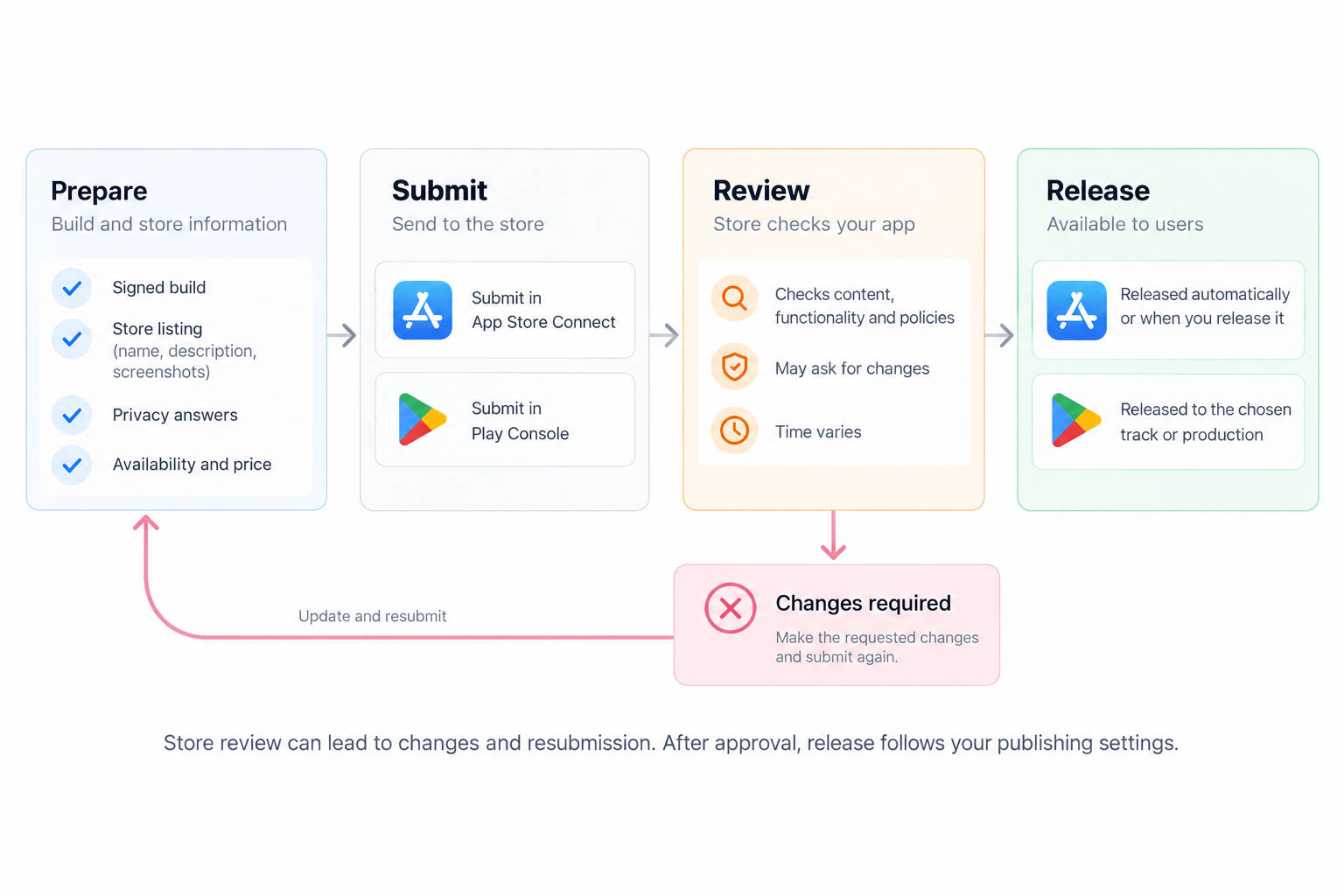
App Store: in App Store Connect, choose the countries or regions where your app will be available and set its price, which can be free. Both are required before you can submit. Choose a release option for when an approved version goes live, then add your version to a submission and submit it for review. If App Review finds a problem, check the App Review Guidelines, reply in App Store Connect if needed, and fix and resubmit.
Google Play: in the Play Console, choose the countries or regions for your release and set your app as free or paid. If you needed production access, wait until it’s approved. Then create a production release with your tested build and send the changes for review from the Publishing overview page. If Google finds a problem, check your app’s policy status to see what was found, then fix the issue and resubmit, or appeal.
6. Release your app
Once the store approves your app, it can go live.
App Store: if you choose automatic release in step 5, the approved version goes live without further action. If you choose manual release, release the version in App Store Connect once its status changes to Pending Developer Release.
Google Play: with standard publishing, your app goes live once Google approves your release. If you use managed publishing for an update, approved changes wait until you publish them from the Publishing overview page. The publishing status shows when your app is available on Google Play.
What carries over to your next release
Most of what you set up the first time stays in place. You reuse your developer accounts and app records. To keep them working, renew your Apple Developer Program membership each year and renew your Apple signing certificates before they expire. Your store page, privacy answers, and availability choices carry over too. Update them when your app or your plans change, and check the stores’ requirements before each release.
For each new version, you build and sign the update, test it, submit it for review, and release it. A new build and store review are required every time, and testing is recommended. If those repeated steps start to take up your time, that’s where your own automation, a hosted service, or an agent can help.
Now that you know what it takes to publish a Flutter app, start with step 1 if your app is ready, or use the Serverpod Quickstart to build your next one.